• Computer Peripheral!

    Laptop Tips

    Buying and Getting informations about Notebooks, Laptops and Netbooks

  • Laptop Tips

    Top 5 Laptops/Netbooks

    Buying and Getting informations about Notebooks, Laptops and Netbooks

  • Computer Peripheral

    Computer Peripheral

    Buying and Getting informations about Notebooks, Laptops and Netbooks

Tampilkan postingan dengan label computer products. Tampilkan semua postingan

2010/05/04

Ports and Power Connector AND Wireless Internet Connectivity

Ports and Power Connector

Laptops are sometimes plagued by internal failure of the physical connectors, like the modem or network port seems to be detached within the case, making it tough to get a good connection, or the power connector solder joint to the board breaks. The only way to fix these problems is to open up the body of the laptop, determine exactly what has broken, and do your best to restore it to the original condition, rather than just kludging it. The problem with kludging anything in a notebook is that the tolerances are so tight that your kludge might fail as soon as you snap the case back together. When soldering anything on a laptop board, use a fine tip iron and don't gamble on overheating the board and stripping away circuitry. Use a decent solder sucker to quickly clean up the old solder rather than fooling around with copper wick, and if you get the feeling you're taking to long, just stop and let it all cool down before trying again.

Wireless Internet Connectivity

Modern laptops are all sold with built-in wireless adapters. Some power notebooks used by corporate road warriors will have powerful cellular adapters that connect the laptop to the Internet via the cell phone infrastructure, but the standard built in adapter is an IEEE 802.11b/g wireless transceiver that allows the laptop to connect to local wireless routers and access point within a hundred feet or so. The signal strength is proportional to both the distance between the router and the notebook, and the stuff inbetween, like doors, people, walls, etc. That said, the main hardware issue you'll run into with a wireless Internet connection is the wireless adapter in the laptop being switched off! The vast majority of the time, Internet connectivity problems will be due to operating system software settings or router security settings. The easiest way to troubleshoot whether your connectivity problem is dependent on your local network is to take the laptop somewhere else and try it.

Visits our Computer pheriperal and Cellular product by clicking here or Computer Products.

Hard Drive Failure


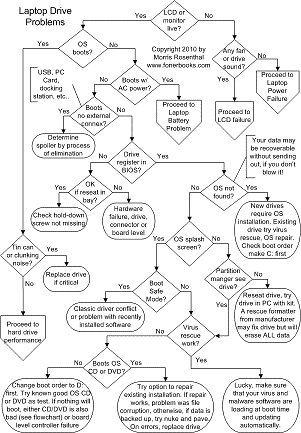
Fortunately, laptop hard drives are the one really generic part (aside from most memory) that you don't have to worry too much about replacing. I just pricewatch or call dirtcheapdrives and buy the closest capacity match, which is usually somewhat larger. Depending on the model, you may be able to really upgrade to a much bigger drive on a replacement, but you probably won't get the benefit of a faster interface on an older notebook and the BIOS may not recognize most of the capacity, so there's no point in spending much more than you have to. Laptop hard drives can be extremely easy to replace or moderately difficult. The difference lies in how they are accessed. Many older notebooks allow you to replace the hard drive through a single-screw access panel on the bottom of the unit, sometimes it's right under the battery or the RAM. Other laptops require that you crack the body open, remove the keyboard or the motherboard (assembly varies from manufacturer to manufacturer), really take the whole thing apart. The interface for the IDE cable on the drives that come out easy is often fixed in place, so the drive basically plugs in, while the drives that require you to take the whole thing apart often make remove the connector on a flexible (and fragile) flat cable before removing the drive. I have an illustrated guide on how to replace a laptop hard drive of the easier type:-)

Laptop Fan Failure


The guts of a laptop are crammed into such a small, cramped space, that the cooling fan is absolutely critical. A replacement laptop fan and heat pipe should cost well under $50, you may even get by with a generic fan replacement for a few bucks, but the job is fairly involved and differs from manufacturer to manufacturer. I don't get excited about noisy laptop fans, I had one in my Toshiba Satellite that got noisy within a year of my buying it and continued noisy for the next four years without failing. On the other hand, you don't want to wait until you get heat damage to replace the fan. If the fan gets increasingly noisy over time or starts noisy (and slow) then quiets down as it picks up speed, I'd replace it at the first opportunity. Assuming you've owned the notebook for a while, you should be familiar with how long the fan usually takes to come on and how long it runs. If the fan never comes on, unless you're working in a freezer, it's probably dead. I just did a page on troubleshooting laptop CPU overheating problems and inspecting the laptop fan for linting or failure.

Video Failure

The first thing to check in cases of complete video failure is the power status, as detailed above. If you can always hear your laptop fan when you turn on the laptop and now you can't it's not a video failure, it's a power or mainboard failure. The next troubleshooting step is to connect an external monitor with a standard VGA connector, whether a CRT or an LCD. If your notebook won't light up the external monitor, it's extremely likely that either the motherboard or the internal video adapter (if it's not part of the mainboard) has failed. If the video adapter is a discrete component and you can find a replacement for under $100, it might be worth gambling on replacing, but it's almost never cost effective to replace a mainboard. There is a small chance that the internal connection to the external video port has coincidentally failed with the laptop's own video subsystem, but it's not all that likely.

If the external monitor works fine, your failure is with the laptops video subsystem, which is usually contained entirely in the screen/lid assembly. There is a decent chance that one of the cable bundles (video signal or power) that run through the hinges to the video subsystem has failed, so unless the failure is obvious (cracked screen, fading in a corner, faint image, bad pixels), you should still open up the main body of the laptop as well to visually inspect the connections. The easiest problem to identify is obviously a cracked LCD, but a slowly increasing number of dead spots or whole rows or columns on the screen indicates the the actual LCD assembly is bad. Replacing the LCD is pretty much the same on most notebooks, Dell has a nice backlight design, the real challenge is getting the lid open and removing it without breaking anything.


.

If your screen brightness seems to flicker or sometimes is bright and sometimes almost fades out completely, even then the unit is plugged into the wall (don't get fooled by power saver mode), then you probably have a failing inverter or backlight. Between the two, the inverter is several times more likely to fail, it plays the role of the solid state ballast in modern fluorescent lights. The backlight itself is a CCFL (Cold Cathode Fluorescent Lamp) with a very long meant time between failure, while whole generations of inverters have been lemons on some laptop models, you can easily research your model on Google. I did an illustrated guide to how to replace an inverter or backlight on a Toshiba notebook, the process is similar for any laptop.

How to solve Laptop / Notebook Performance Problems

Laptop and Notebook Problems are a very annoying, especially once it is broken and has to be send in! After having to deal with several problems and searching for solutions all over the web this collection of information, links and resources evolved, hopefully this will help you as well.

Everyone who ever experienced the loss of crucial data due to sending in a latop without being able to backup the data knows that it's time to fix problems before they turn into disasters. The two weeks not knowing if you get your laptop and data back, or just your laptop are pretty bad, especially when you have just created loads of stuff the last week and don't have backed it up yet.

The most common latop fix you can get is simply some sort of heat reduction. This can improve your overall performance and reduce problems greatly. A latop cooler is a cheap way to increase the lifespan and performance of your laptop.

Common Notebook Problems

There are several Problems that can be considered an evergreen within the notebook world. The three main problems every Notebook user can run into are:

Overheating Laptops
Overheating is a very common Problem due to the small space and the bad air supply a latop can have. In case the laptop has some very high end Hardware build in this can lead to some serious overheating, furthermore resulting in performance problems / lagging and in some worst case scenarios emergency shut-downs and/or battery damage due to overheating leading to a shorter uptime. Always make sure that your laptop is not on fuzzy underground and has a proper venting.
Bad Performance
Bad performance may have several reasons, on the one side it can be due to a cheap laptop and bad components, too much heat or a misconfiguration in the OS. In case you have serious trouble with your OS you should try to use a program to clean your registry & hard disk. Otherwise you should be a bit picky about which laptop you get.
Short Energy Supply
After a while every laptop battery loses some of it's inital power. This may be up to 50% with cheap models, and 10-25% in more expensive products. In case you are a big traveler, or spend plenty of time outside without external power supply there are additional notebook batteries that can server anywhere between 6-20 additonal hours.

A Laptop Cooler against Overheating

A laptop cooler can bring instant help in case your laptop has heat problems. Most of the high performance laptops lack a solid air supply and overheap very easy once they have to perform certain tasks. The investment of 20-60$ can seriously improve performance and increase the longevity of your Notebook.

Extend your notebook Power Supply

Notebook Power Supply can be very limited with a standart battery, improve your working time on the road with external power supply batteries.

Programs for your PC Maintenance

Maintaining your Computer and having tools to help you improve your performance is crucial. Never let your laptop slow down due to being either to lazy or too cheap to get some good programs that will fix your troubles before they even start.

Protect your Notebook against evil Software

The latest tests have shown one clear winner when it comes to maleware detection. Norton-anti bot. Right now, besides Komodo the free firewall, this is the program recommended to protect your computer.


2010/04/26